
Download AstroShare – Free Remote Control Software for Mac & Windows
Overview of AstroShare
AstroShare is a lightweight, free remote‑control utility that lets you access and manage another computer across the Internet or a local network. Originally released for Mac OS X, the program also supports Windows, making it a versatile choice for mixed‑platform environments. Though the last official update (v1.8.1) dates back to September 13 2007, AstroShare remains functional for basic screen sharing, file transfer, and remote assistance tasks.
Its modest system requirements mean it consumes far less disk space than many modern remote‑control suites, a benefit for users with older hardware or limited storage. AstroShare’s interface is intentionally simple: a friends list for quick connections, a built‑in port tester, and a minimal set of configuration options. Because the software is distributed in English only, non‑English speakers may need to rely on community‑generated guides, but the intuitive layout helps mitigate language barriers.
Over 1,400 users have downloaded AstroShare since its catalog debut in 2006, indicating a niche but loyal user base. While it does not boast the advanced features of commercial tools like TeamViewer or AnyDesk, AstroShare’s core promise—secure, free remote access—remains compelling for hobbyists, small businesses, and educators who need occasional remote support without a subscription fee.
Key Features of AstroShare
- Cross‑platform support for Mac OS X (including legacy versions) and Windows.
- Friends List for quick, repeat connections without re‑entering credentials.
- Built‑in Port Tester to verify network accessibility before initiating a session.
- Secure password‑protected connections with optional encryption.
- File transfer capability allowing drag‑and‑drop between local and remote machines.
- Lightweight footprint: requires less than 15 MB of disk space and minimal RAM.
- Simple user interface designed for users with limited technical expertise.
- Free distribution with no hidden fees or mandatory upgrades.
Each of these features is crafted to keep the remote‑control experience straightforward. The Friends List, for example, stores encrypted credentials so you can double‑click a contact to start a session, saving time for support technicians who regularly assist the same users. The Port Tester runs a quick handshake with the remote machine to confirm that firewalls or NAT devices aren’t blocking the required ports, reducing the frustration of failed connections. While AstroShare does not include built‑in video conferencing or multi‑monitor support, its core feature set—screen sharing, remote mouse/keyboard control, and file exchange—covers the essentials for most remote‑help scenarios. The software’s low memory usage also means it can run on older Macs that might struggle with modern, resource‑heavy alternatives.
Installation, Usage & Compatibility
Downloading and Installing AstroShare
To begin, navigate to the official AstroShare download page and select the version that matches your operating system. For Mac users, the installer comes as a .dmg file; Windows users will receive a .exe installer. The download is completely free and does not require an account. After the file finishes downloading, open the installer and follow the on‑screen prompts: drag the AstroShare icon into the Applications folder on macOS, or click “Next” through the Windows setup wizard. The installer will automatically place a shortcut on your desktop and add AstroShare to the start‑up items, allowing the program to launch whenever the computer boots—handy for users who need to be reachable at all times.
Initial Configuration
When you launch AstroShare for the first time, you’ll be greeted by a brief setup wizard. The wizard asks you to create a username and password; these credentials are used to authenticate incoming connections. For added security, you can enable the optional encryption toggle, which encrypts all traffic between the local and remote machines using a 128‑bit key.
Next, the wizard walks you through configuring your network settings. If you’re behind a router, you may need to enable “Port Forwarding” for the default port (usually 3000) so external connections can reach your computer. The built‑in Port Tester helps verify that the port is open and reachable; simply click “Test Port” and follow the instructions.
Connecting to a Remote Machine
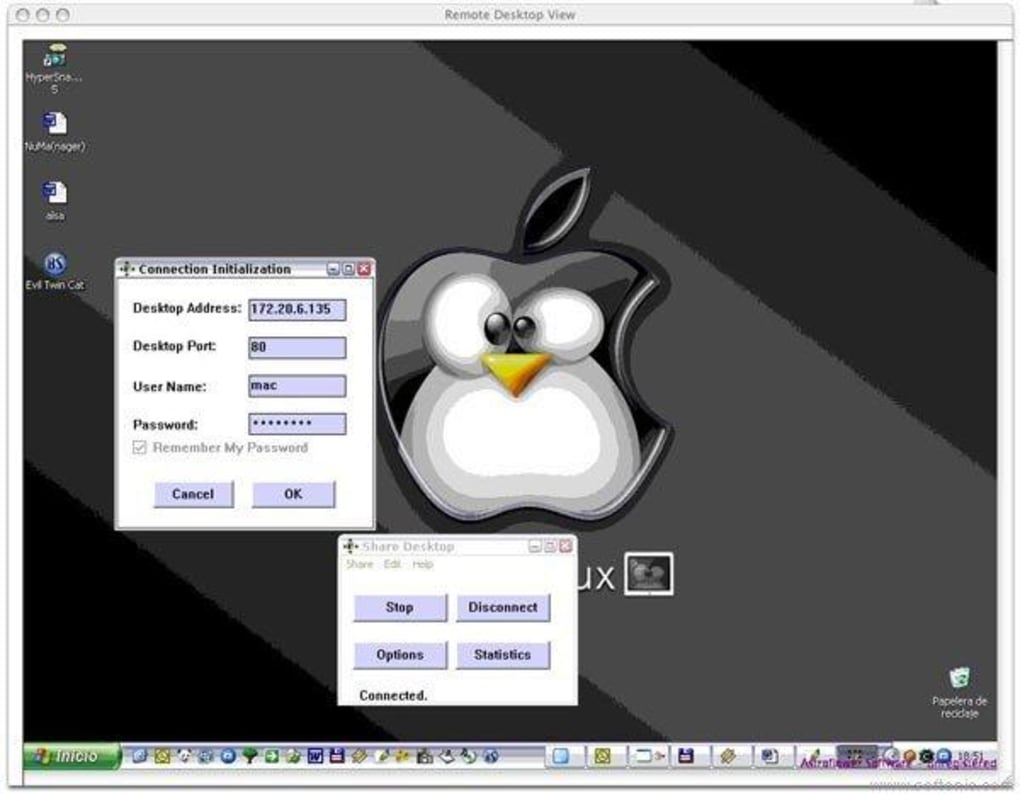
Once both computers have AstroShare installed and configured, adding a friend is straightforward. Open the “Friends List” panel, click “Add Friend,” and enter the remote user’s username, IP address, and the port you’ve configured. After saving the entry, double‑click the friend’s name to initiate a connection. If the credentials match and the port is open, AstroShare will display the remote desktop within a resizable window. You can now control the remote mouse, type on the keyboard, and transfer files by dragging them into the shared folder displayed on the right side of the interface.
Compatibility
AstroShare runs on macOS versions dating back to Mac OS X 10.2 (Jaguar) and on Windows XP, Vista, 7, and later editions. Because the software was last updated in 2007, it does not officially support newer macOS releases (e.g., macOS Monterey or Ventura) or Windows 10/11, but many users report successful operation when running the program in compatibility mode or using legacy system libraries. The application is a 32‑bit binary, which can be a limitation on modern 64‑bit‑only operating systems. Nonetheless, for users with legacy hardware or those who maintain older operating system environments for specific tasks, AstroShare remains a viable remote‑control solution.
Pros & Cons
Pros
- Completely free with no hidden subscription costs.
- Lightweight and fast, ideal for older hardware.
- Simple Friends List makes repeat connections effortless.
- Built‑in Port Tester reduces connectivity headaches.
- Cross‑platform support for both Mac and Windows.
Cons
- Last official update was in 2007; may have compatibility issues on newer OS versions.
- Lacks advanced features such as multi‑monitor support, chat, or session recording.
- English‑only interface limits accessibility for non‑English speakers.
- Encryption is optional and uses a relatively weak 128‑bit key by today’s standards.
- No mobile (iOS/Android) client, restricting remote access to desktop devices.
Frequently Asked Questions
Is AstroShare still safe to use despite being unmaintained?
While AstroShare’s core functionality remains stable, the lack of recent security patches means it may be vulnerable to newer exploits. Users should employ a firewall, strong passwords, and optional encryption, and limit usage to trusted networks.
Can I use AstroShare to control a computer behind a NAT router?
Yes. By configuring port forwarding on your router for the default AstroShare port (or a custom port you choose) and using the built‑in Port Tester, you can establish a connection through NAT.
Does AstroShare support file transfer between the local and remote machines?
File transfer is supported via a drag‑and‑drop interface. You can move files in either direction by dragging them into the shared folder pane during a remote session.
What are the minimum system requirements for running AstroShare?
AstroShare requires as little as 15 MB of disk space and 32 MB of RAM. It runs on Mac OS X 10.2 and later, as well as Windows XP and newer 32‑bit Windows versions.
Is there a mobile version of AstroShare for iOS or Android?
No, AstroShare is currently limited to desktop operating systems. Mobile users will need to rely on alternative remote‑control apps for iOS or Android.
Conclusion & Call to Action
AstroShare delivers a no‑cost, straightforward remote‑control experience that still holds value for users with legacy Macs or Windows PCs. Its lightweight design, friends‑list shortcuts, and built‑in port tester make it especially appealing for small teams, educators, or anyone who needs occasional remote assistance without paying for premium services. However, the software’s age means you should weigh the security trade‑offs and compatibility limits before deploying it in a production environment.
If you’re comfortable managing firewall rules and can accept the modest feature set, AstroShare remains a viable, free alternative to commercial remote‑desktop tools. Ready to give it a try? Download AstroShare now and start controlling your remote computers securely and effortlessly.
AstroShare offers a solid set of core remote‑control features for free, with a simple UI and low resource consumption. While its lack of recent updates and advanced functionalities limit its appeal for power users, it remains a reliable choice for basic remote assistance on older systems.







